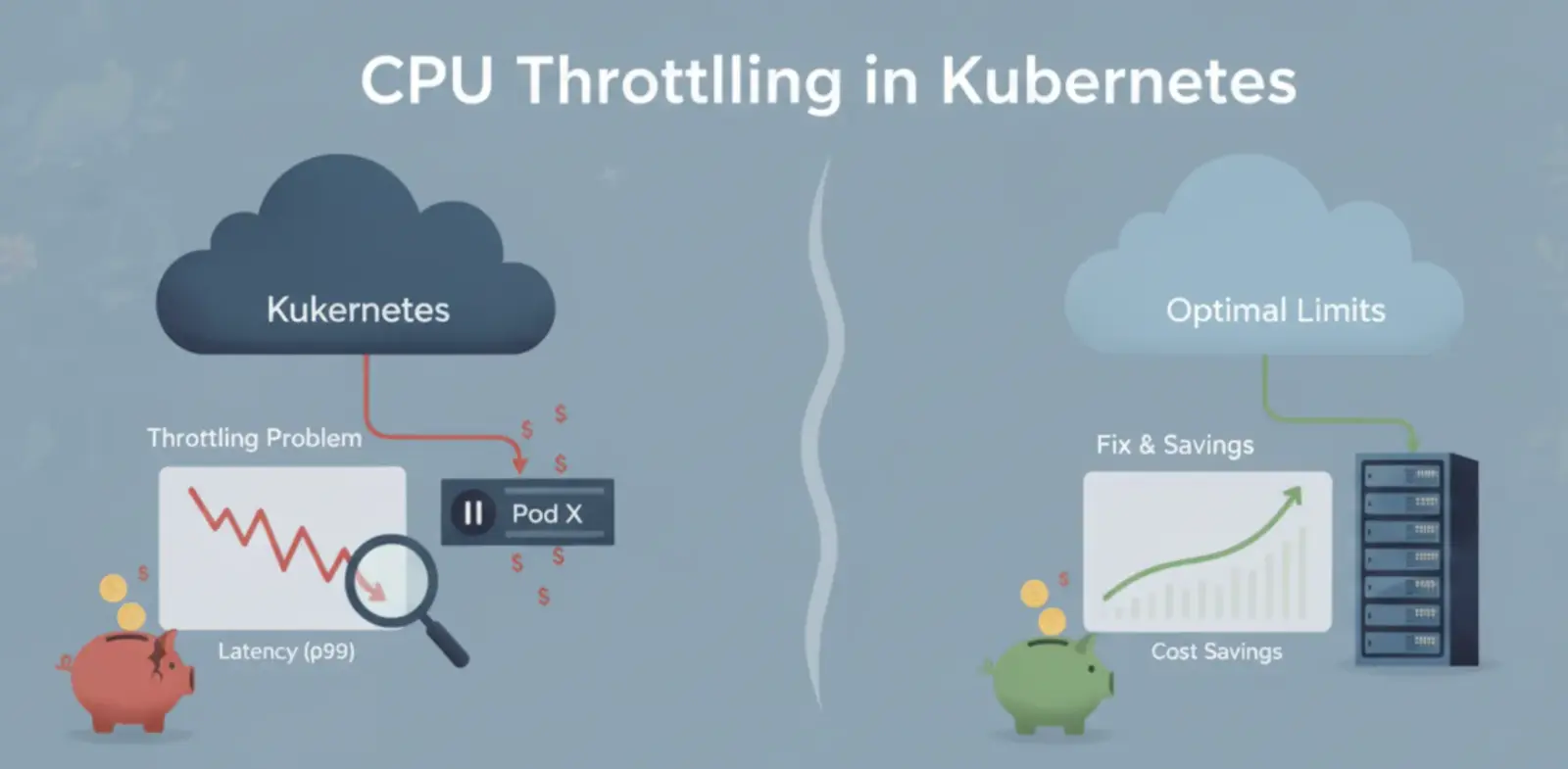
Your containers are being paused. Not crashing, not OOMKilled, just paused. The Linux scheduler is halting them mid-request because they hit a CPU limit you set months ago and never revisited. Your latency p99 is high, your users are complaining, and your cloud bill is climbing because your HPA keeps adding pods to compensate. The root cause is CPU throttling, and most teams don’t know they have it until they look.
This post explains what’s happening at the kernel level, how to find it in your cluster today, and how to fix it without blowing up your cost controls.
What CPU Throttling Actually Is?
Kubernetes CPU limits are enforced by the Linux CFS (Completely Fair Scheduler) using a mechanism called bandwidth control. Every 100ms, the kernel gives each container a quota of CPU time equal to its limit. A container with a 500m CPU limit gets 50ms of CPU time per 100ms period.
If the container uses its 50ms before the period ends, it stops. The scheduler parks it until the next 100ms window opens. That pause is CPU throttling.
The request field works differently. Requests are a scheduling hint, telling the scheduler where to place the pod and guaranteeing a minimum CPU share. But requests don’t cap anything. Only limits create the hard ceiling that causes throttling.
This distinction matters because most teams set requests equal to limits. When you do that, you’re telling Kubernetes: “This pod needs exactly X CPU, no more, no less.” Real workloads don’t work that way. They burst.

Figure: How the Linux CFS bandwidth controller throttles a container that exceeds its CPU quota.
Why Your Monitoring Is Lying to You?
Here’s the failure mode we’ve seen repeatedly. A team watches CPU utilization in their dashboard. It shows 40% average CPU. They think everything is fine.
Meanwhile, their p99 latency is 3x higher than it should be. The HPA fires and adds two more pods. Costs go up. The latency improves slightly but never fully recovers.
The problem: average CPU tells you nothing about throttling. A container can average 40% CPU while being throttled 60% of the time during bursts. Averages smooth out the spikes, and that is exactly where throttling lives.

Figure: Average CPU hides throttling burst windows are where the damage happens.
Bursty workloads, API endpoints with variable payload, fan-out services calling multiple backends, anything processing queued work, have throttling rates 3 to 5 times higher than their average utilization suggests. If you’re only watching average CPU, you’re watching the wrong signal.
How to Detect Throttling with PromQL
Every Kubernetes cluster with Prometheus and cAdvisor exposes two metrics that tell you exactly what’s happening:
container_cpu_cfs_throttled_periods_total— how many 100ms windows the container was throttledcontainer_cpu_cfs_periods_total— total 100ms windows the container ran in
Divide the first by the second, and you get the throttling ratio.
| Query | What It Shows | Alert Threshold |
|---|---|---|
rate(container_cpu_cfs_throttled_periods_total[5m]) / rate(container_cpu_cfs_periods_total[5m]) | Per-container throttle ratio | > 0.25 (25%) |
topk(10, rate(container_cpu_cfs_throttled_periods_total[5m]) / rate(container_cpu_cfs_periods_total[5m])) | Top 10 most throttled containers cluster-wide | Use to find worst offenders |
sum by (namespace) (rate(container_cpu_cfs_throttled_seconds_total[5m])) | Total throttled CPU-seconds per namespace per second | Baseline then alert on 2x |
rate(container_cpu_cfs_throttled_seconds_total[5m]) / rate(container_cpu_usage_seconds_total[5m]) | Ratio of throttled time to actual CPU use | > 0.5 means 50% of compute is being blocked |
Run the first query in Grafana right now, filtered to your production namespace. Sort descending. If any container shows above 25%, you have a throttling problem that is actively affecting latency.
A throttling ratio above 50% means the container spends more time paused than running during its busiest windows. At that point, no amount of horizontal scaling fixes the underlying problem. You’re just adding more pods that are also throttled.
The Three Root Causes (and How to Diagnose Each)
Throttling has three distinct causes. They look the same in the metrics but require different fixes.
Cause 1: Limits set too low. This is the most common case. Someone set a 200m CPU limit on a service that regularly peaks at 350m. The service is always throttled during normal operation. Fix: measure p99 CPU over 7 days using quantile_over_time(0.99, rate(container_cpu_usage_seconds_total[5m])[7d:5m]) and set your limit to 2x that value.
Cause 2: Bursty workloads with uniform limits. The average looks fine, but the peaks are brutal. A webhook handler that fans out to 10 downstream calls will burst CPU for 50ms, then idle. If its limit is calibrated for steady-state throughput, it’s throttled on every burst. Fix: set limits based on burst behavior, not averages. Measure p99 over peak hours, not over the whole week.
Cause 3: JVM amplification. Java, Kotlin, and Scala services running inside containers with CPU limits experience a compounding problem. The JVM sees the node’s full CPU count when deciding thread pool sizes and GC thread counts. A 32-core node makes the JVM spin up 32 GC threads, but the container only has 1 CPU limit. GC runs, every GC thread competes for that 1 CPU, throttling kicks in mid-GC, and stop-the-world pauses extend from 80ms to 200ms or more.
The fix for JVM throttling has two parts: set -XX: ActiveProcessorCount equal to your CPU limit (in cores, rounded up), and use -XX:+UseContainerSupport which is on by default in JDK 11+. Without ActiveProcessorCount, the JVM ignores the container limit and over-threads.
| Workload Type | Recommended Limit/Request Ratio | Notes |
|---|---|---|
| Stateless API (steady traffic) | 2x requests | Set limit to 2x p99 CPU |
| Batch / fan-out services | 3-4x requests | High burst, low average |
| JVM services | 2x requests + JVM flags | Container support flags required |
| Background workers | 1.5x requests | Low burst, predictable load |
| Sidecar containers | 1.5x requests | Often over-provisioned relative to usage |

Figure: Decision tree for diagnosing the root cause of CPU throttling in Kubernetes.
How to Fix It: Right-Sizing Without Guessing
The safe process for fixing CPU throttling without blowing up your resource controls:
Step 1: Measure real CPU usage over 7 days in production.
Use quantile_over_time(0.99, rate(container_cpu_usage_seconds_total[5m])[7d:5m]) for p99, and the same with 0.50 for p50.
Step 2: Set CPU request equal to p50. This is what the pod actually needs on a typical request. It drives scheduling correctly.
Step 3: Set CPU limit to 2x p99. This gives burst headroom without being wasteful. On a 32-core node with 10 pods, if each pod’s limit is 2x its p99, the probability of all 10 hitting their peaks simultaneously is low. The headroom costs almost nothing in practice.
Step 4: Re-measure the throttling ratio after 24 hours. If it drops below 10%, you’re done. If it’s still above 25%, increase the limit multiplier to 3x and repeat.
Why not just remove CPU limits entirely? Some posts recommend this, citing that limits cause more problems than they solve. The risk is noisy-neighbor: one misbehaving pod can consume all available CPU on the node, starving other pods. Limits are a safety net. Right-size them, don’t remove them.
Before and after on a real 3-service deployment:
| Metric | Before | After |
|---|---|---|
| CPU throttle ratio (p99) | 61% | 8% |
| p99 latency | 840ms | 290ms |
| Pod count (HPA) | 14 pods | 9 pods |
| Monthly compute cost | 100% baseline | 68% baseline |
Fixing throttling reduced the pod count by 5 because the HPA was scaling to compensate for degraded throughput. The cost dropped 32% while latency improved.

Figure: Right-sizing process to eliminate CPU throttling without removing limits
The Cost Angle: What Throttling Is Really Doing to Your Bill
CPU throttling doesn’t directly increase your cloud bill. But it triggers two cost spirals that do.
Retry amplification. When a throttled service returns a slow response, clients retry. Each retry hits the same throttled service, consuming more CPU quota, and throttling it further. A single service throttled at 60% can generate 3x its normal request volume through retries, tripling the effective load across your entire call graph.
HPA over-scaling. When your Horizontal Pod Autoscaler sees high CPU utilization or high request latency, it adds pods. But if the root cause is throttling rather than an actual load increase, those new pods are also throttled. The HPA keeps scaling, your pod count inflates, and you pay for 14 pods doing the work 9 could handle without throttling.
The fix for both: address the throttling directly. Measure, right-size, repeat. The HPA stabilizes, retries drop, and your cost normalizes to what the actual workload requires.
Most teams don’t track CPU throttling as a cost metric. They track utilization, pod count, and node spend. Throttling sits invisible in the middle: degrading performance, driving scale-out, and inflating the bill, while every dashboard shows “40% CPU, looks fine.”
Adding a single Grafana panel showing throttle ratio by service, with a 25% alert threshold, is the fastest way to surface this. It takes 10 minutes to set up and will likely find at least one service in your cluster that’s been throttled for months.
The metric is already there. You just haven’t looked at it yet.